> For the complete documentation index, see [llms.txt](https://help.booksession.co/product-docs/llms.txt). Markdown versions of documentation pages are available by appending `.md` to page URLs; this page is available as [Markdown](https://help.booksession.co/product-docs/features/client-gallery/editing-gallery-settings.md).
# Editing Gallery Settings
Welcome to the gallery settings customization page of Booksession. This guide will assist you in understanding and modifying your gallery settings to match your preferences. Let's explore the process step by step.
### **Accessing Gallery Settings**
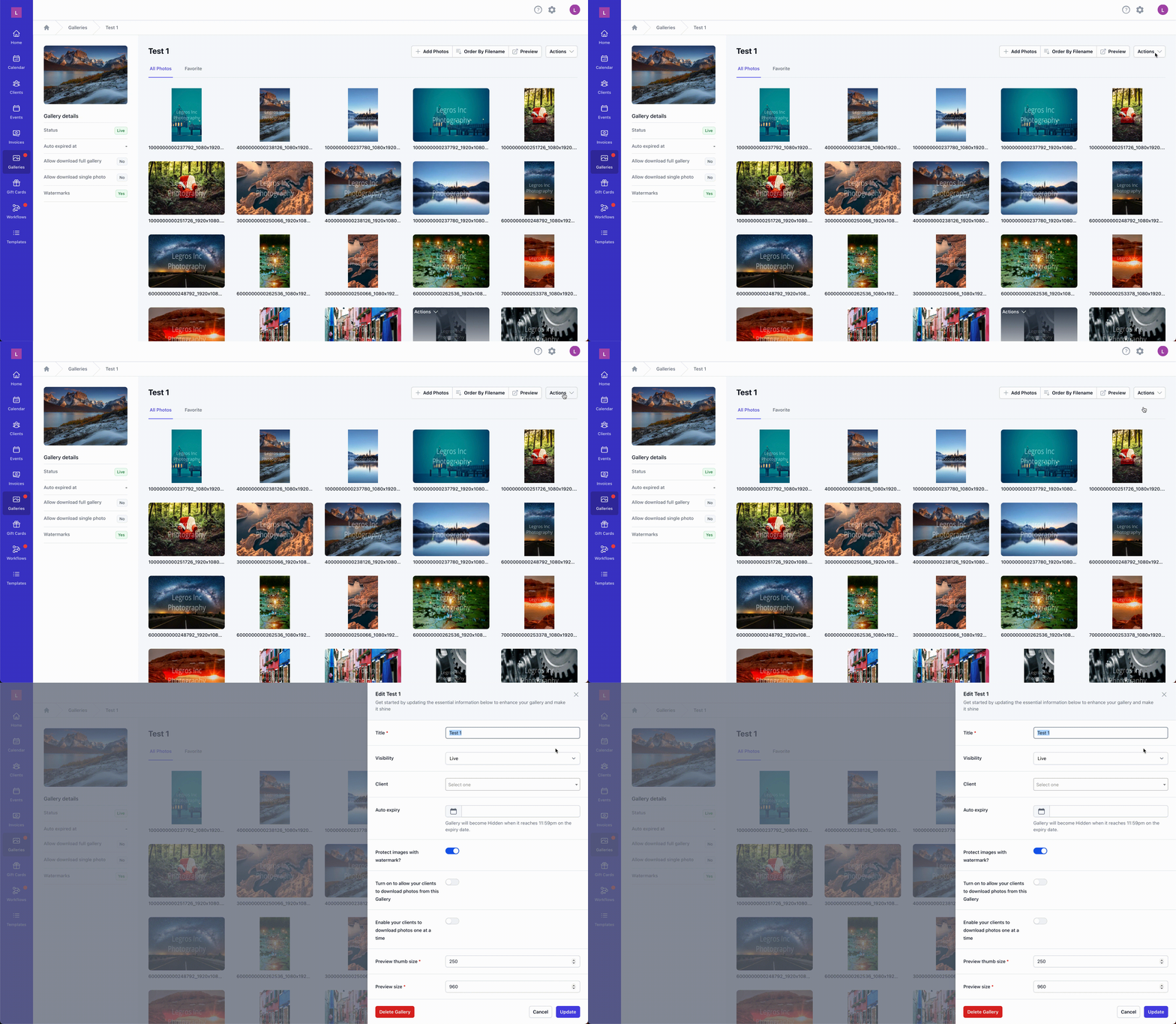
* From your gallery interface, locate the "**Actions**" button positioned at the top right corner.
* Click on "**Actions**," and from the dropdown menu, select "**Settings**." This will open the gallery settings page.
Upon entering the gallery settings page, a side-over modal will appear, presenting you with the options to edit various fields.
### **Overview of Editable Fields**
* **Title (Required):** Adjust the gallery's title or name to reflect the content or theme of the gallery.
* **Visibility (Required):** Determine whether you want to show or hide the gallery from clients' viewing.
* **Client (Optional):** Link the gallery to a specific client by selecting the client from the dropdown menu.
* **Auto Expiry (Optional):** If desired, set an expiry date for the gallery. After the specified date and time (11:59pm), the gallery will no longer be accessible to clients.
* **Protect Images with Watermark (Optional):** Toggle this option to apply watermark protection to your images within the gallery.
* **Allow Clients to Download Photos (Optional):** Enable or disable the ability for clients to download photos from the gallery.
* **Allow Download of Single Photos (Optional):** Toggle this option to permit or restrict clients from downloading individual photos from the gallery.
* **Preview Thumb Size (Required):** Select the desired quality of thumbnail images for clients' preview.
* **Preview Size (Required):** Choose the preferred quality of images displayed for clients within the gallery.
### **Saving Changes**
Once you've made the necessary adjustments, click the "**Update**" button to apply the changes to your gallery settings.
By understanding and utilizing the gallery settings customization options, you can tailor your gallery to meet your specific goals and provide a seamless experience for your clients.
If you have any questions, require guidance, or need assistance while editing gallery settings, our dedicated support team is here to help. Reach out to us at or contact form.